Make the plan visible
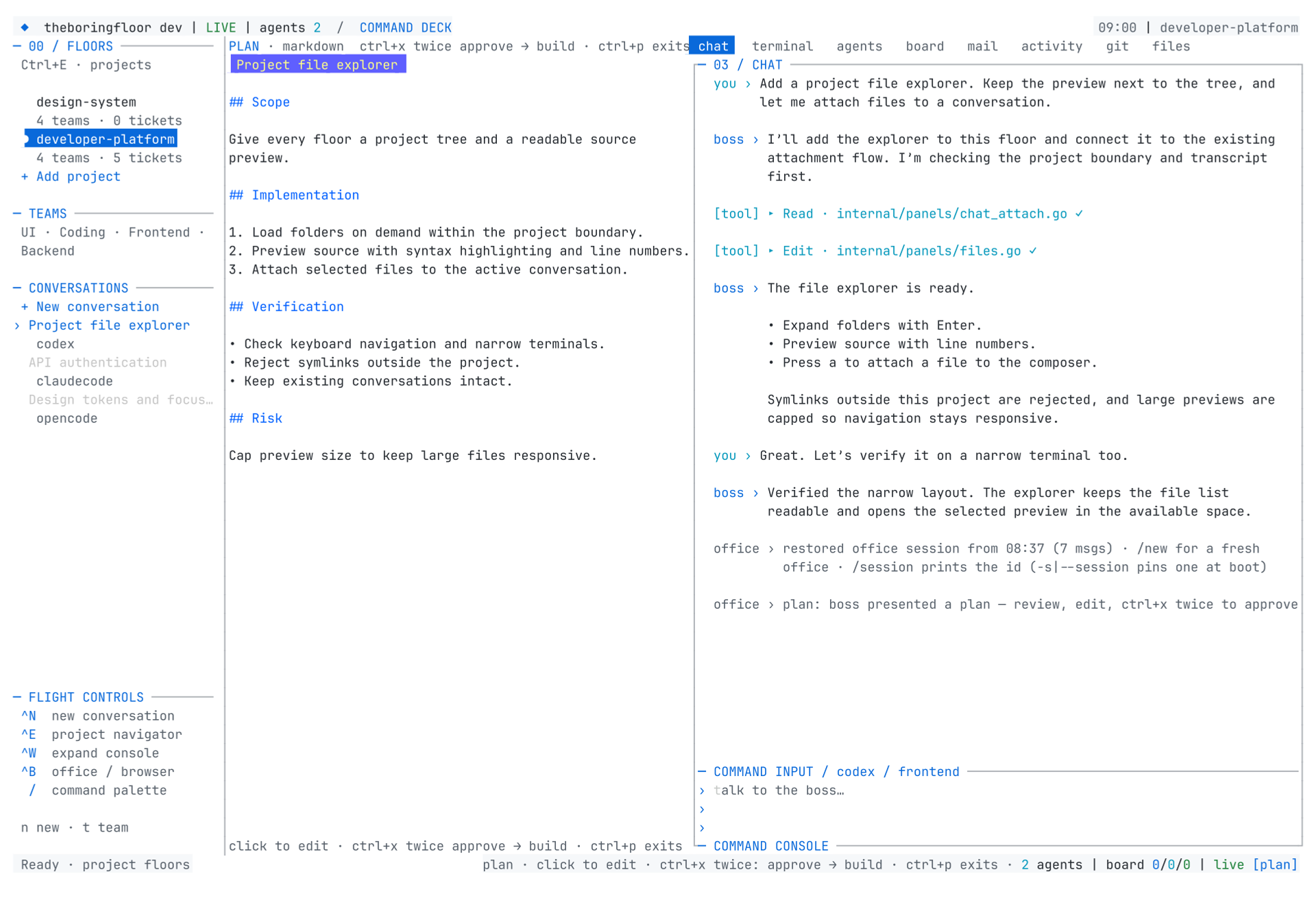
Substantial work starts with a plan. The boss presents it beside the conversation; you review, edit, and approve before implementation.
Automatic planning
The office checks requests before sending them. Clear substantial implementation requests — for example, “Build a complete task management system,” “Add workspaces and project teams,” or a change to both frontend and backend — switch to plan mode automatically. Simple questions and small scoped edits continue directly.
This local check is conservative, not a semantic classifier. The boss receives an additional instruction to assess scope, investigate read-only, and present a plan for major features, migrations, and multi-layer changes before writing files or dispatching implementation workers.
Ctrl+P toggles planning manually. Returning to build skips automatic planning for the next request. With an empty draft, the office remains visible while the status bar shows plan mode; the editor opens when a plan arrives.
Present and update
The floor MCP already provides plan_present and plan_update. Both take nonempty Markdown and open the plan pane in the middle of the workspace. They leave zen mode, expanded tools, and worker-thread focus so the draft is visible. An open permission dialog or form keeps its contents and remains above the plan until you close it.
Both tools replace the current draft, including edits in that draft. Ordinary completed boss replies only mirror a structured plan while plan mode is active, and preserve your manual edits. Empty tool submissions are rejected. A draft never replaces the separately stored approved plan.
When MCP is unavailable, all three backends understand this fallback:
⟦plan-present⟧
# Proposed change

## Steps
1. Inspect the existing implementation.
2. Describe the changes and ownership.
3. List risks and verification.
⟦/plan-present⟧
Use plan-update with the same block structure to revise a draft. Valid markers disappear from the settled transcript. See MCP setup.
Review and approve
Click the pane to edit. Escape returns to chat and keeps your edits. Press Ctrl+X twice within the confirmation window to send the approved draft as a build request. Empty buffers and untouched starter templates cannot be approved. A restored draft must be opened and edited before approval.
Only a successful approval send replaces the durable approved version, capped at 20,000 characters. A failed send keeps the previous approval. plan_get_approved reads that retained version; it does not request or grant approval for a new draft.
Planning changes do not grant unrelated tool permissions. Existing backend permission behavior still applies.
Backend behavior
Planning preserves attachments and sends the same planning intent with them.
- OpenCode: routes through the plan agent and adds the read-only planning instruction. If the server rejects the agent field, the office warns that native routing degraded; the instruction still accompanies the request.
- Codex: uses the CLI read-only sandbox for planning, including resumed threads and turns with attachments. Build turns use the workspace sandbox, unless you explicitly enable bypass.
- Claude Code: uses a read-only planning instruction on its persistent stream. This adapter does not switch the CLI permission mode per turn; planning is prompt-directed and existing tool permissions remain in force.
Opening a plan pane cannot retroactively sandbox a process already doing build work. Automatic routing happens before the new request is sent; agent-triggered presentation changes the UI and subsequent sends.