A floor for every project
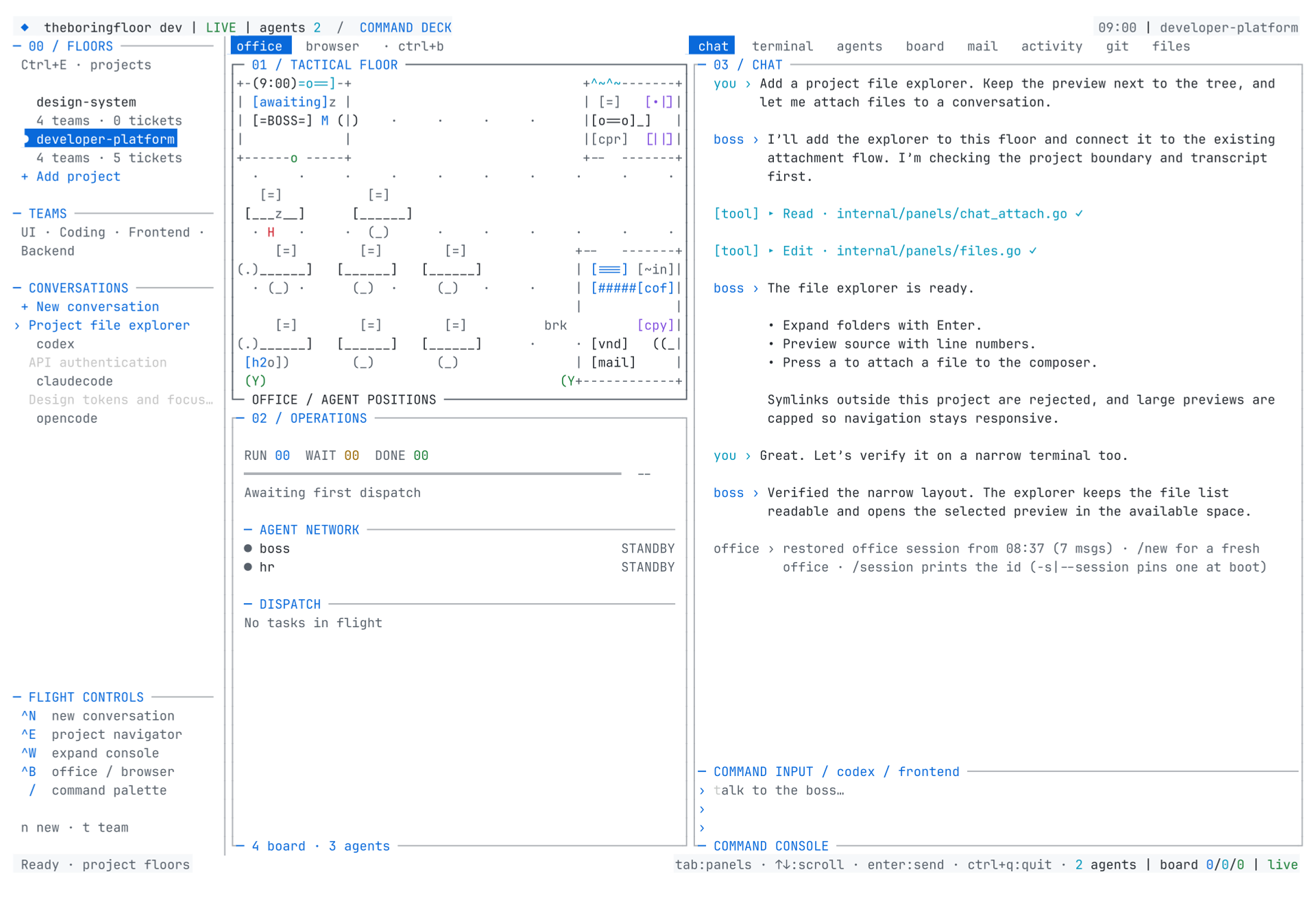
Projects, teams, tickets, source files, and conversations share one workspace. Floors stay on the far left, the office sits in the middle, and transcript and tools live on the right.
Your attention inbox on Android
The Android companion opens to an Inbox of floors needing attention: presented plans, blocked tickets, and tickets ready for review. Switch to All floors to see observed execution states. Refreshes run while the app is open; interrupted connections are shown explicitly. This is not a push notification service.
Open a ticket to review its acceptance criteria, result summary, recorded verification notes, and linked conversation. Prepare in live chat links the active backend/session and stages a prompt for you to review and send. It does not advance the ticket status. Verification notes are authored records, not automatically verified checks. On desktop, s prepares a ticket and o opens its linked conversation.
Use office and gateway v0.7.0+ for execution states and ticket handoffs. Tool permissions and assistant questions still require the desktop office. Download the signed APK from GitHub Releases, then set your gateway URL and token in Settings. Connection changes take effect immediately.
Three panes, one workspace
At 100 columns and wider, the project navigator stays on the far left. The middle pane shows the office, browser, or presented plan. The right pane has eight tabs: Chat, Terminal, Agents, Board, Mail, Activity, Git, and Files.
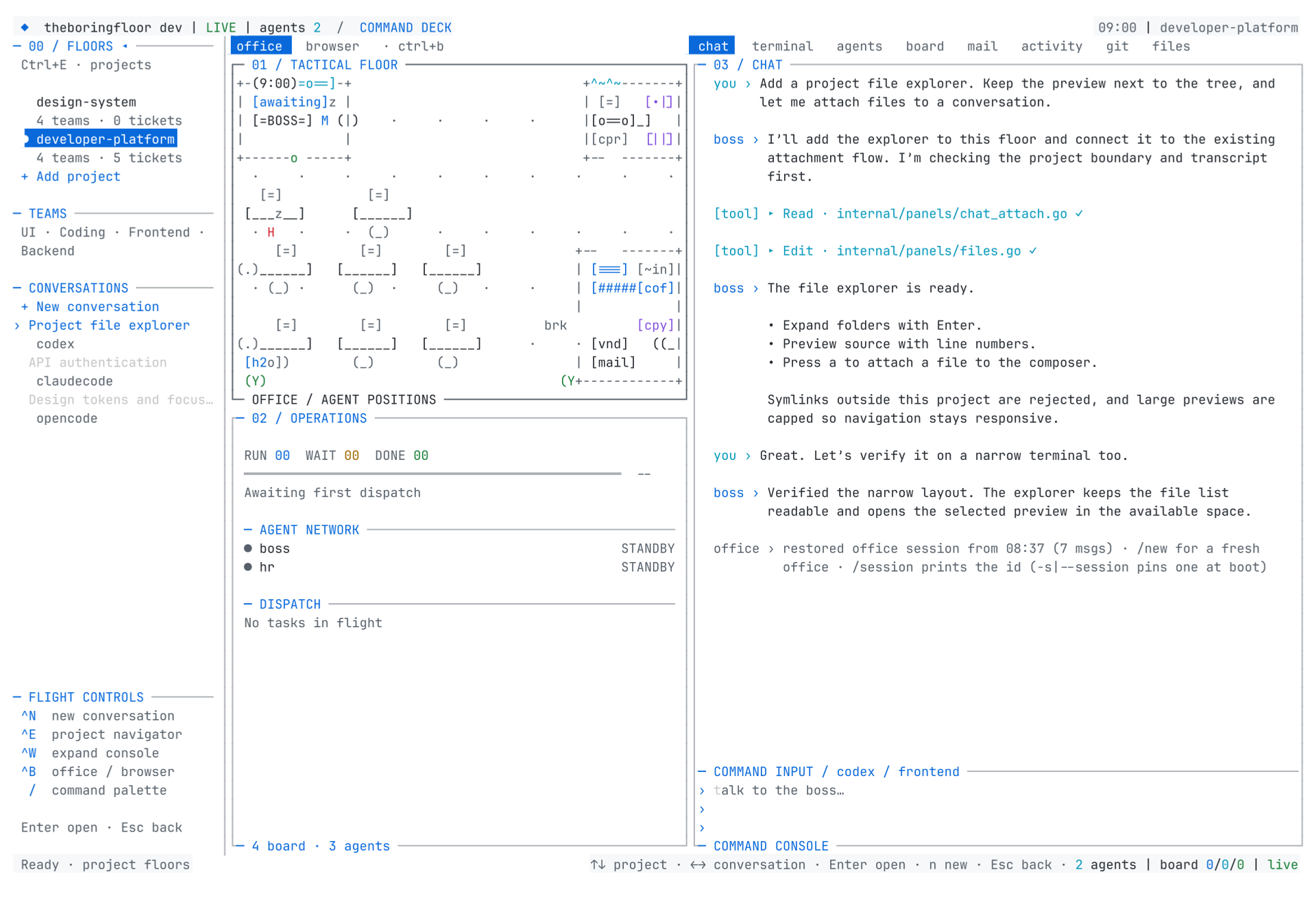
Use Ctrl+E to focus floors; Escape or Tab returns to the tools. Ctrl+W expands the tools while keeping the floor navigator. In narrow terminals, floors open as a drawer instead of squeezing the conversation.
Projects and teams
A floor is a project directory. Open it with theboringfloor --project /path/to/project, or use the floor navigator to open a project. Each starts with UI, Coding, Frontend, and Backend teams. Add custom teams for your workflow.
Teams organize tickets and provide conversation context; they do not create a fixed pool of running agents. Worker creation and reporting depend on the selected backend. Switching floors no longer waits for the active work to stop or finish — a busy floor is handed to the background instead. See Background floors.
Switch floors while one is busy
Switching away from a floor that is working no longer waits for it to finish, and it no longer refuses outright. The departing floor is handed to a detached background office: it spawns a child process pinned to the same directory and session, waits for that child to answer its own health check, and only then lets this office quit. If the child never comes up within the timeout, the switch aborts cleanly and you stay exactly where you were — nothing quits, nothing is lost.
What survives the handoff depends on the backend. OpenCode's detached child attaches to the same still-running opencode serve process with --server, so the in-flight turn keeps going rather than restarting. Claude Code and Codex cannot carry a turn across the switch — Claude's turn rides stdin/stdout pipes that die with the process, and Codex sends a turn synchronously and blocks until it returns — so for those two the floor and its conversation still come back (each resumes from its own session or thread store), but the turn in progress does not. The app says so plainly, for example:
claudecode floor moved to the background — its conversation keeps running there, but the turn in progress (boss turn in flight) did not survive the switch and will need to be re-run.
Re-send that prompt once you switch back. An idle floor skips all of this: with nothing in flight to rescue, it takes the cheap path — no background office is spawned, no notice is shown.
The floor navigator and floor list mark every other floor with one of four badges:
- ● current — the floor you're on now.
- ▲ needs you — parked on a permission prompt or a boss question.
- ◆ working — busy with something in flight.
- ○ idle — live, reachable, and waiting for you.
Needs-you always outranks working: a floor that is both busy and waiting on a prompt shows as needs-you, since that is what actually needs your attention.
Choose a backend per conversation
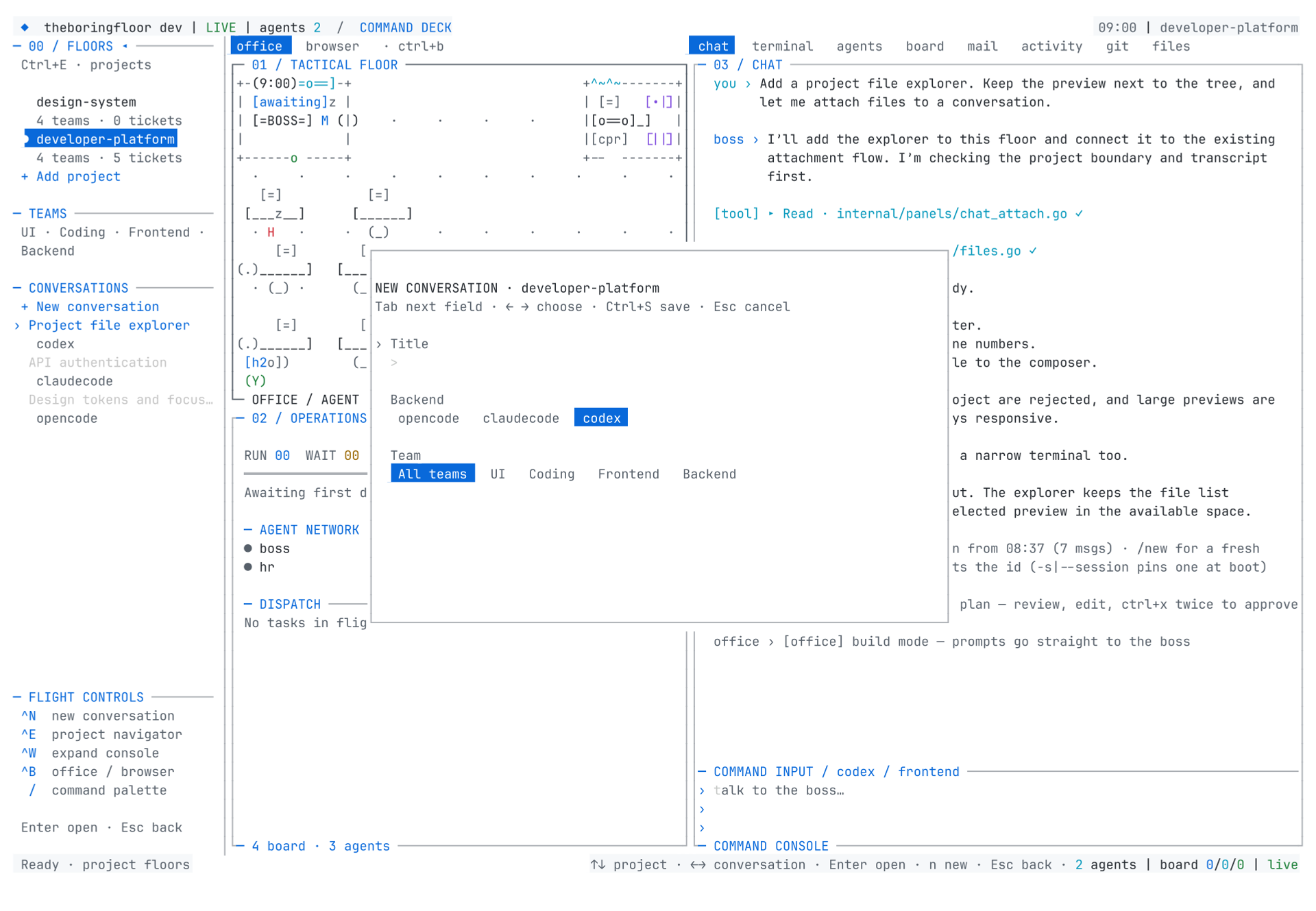
Press Ctrl+N to start a conversation on the current floor. Set its title, choose a team, and select OpenCode, Claude Code, or Codex. In the floor navigator, n starts a conversation on the selected project.
A saved conversation resumes on its original backend; choosing a different backend creates a separate conversation. Install and log into the corresponding CLI first. Codex uses your saved CLI login and model settings.
codex login
theboringfloor --project /path/to/project --backend codex --new
See Backends for transport-specific capabilities.
Tickets that outlive a session
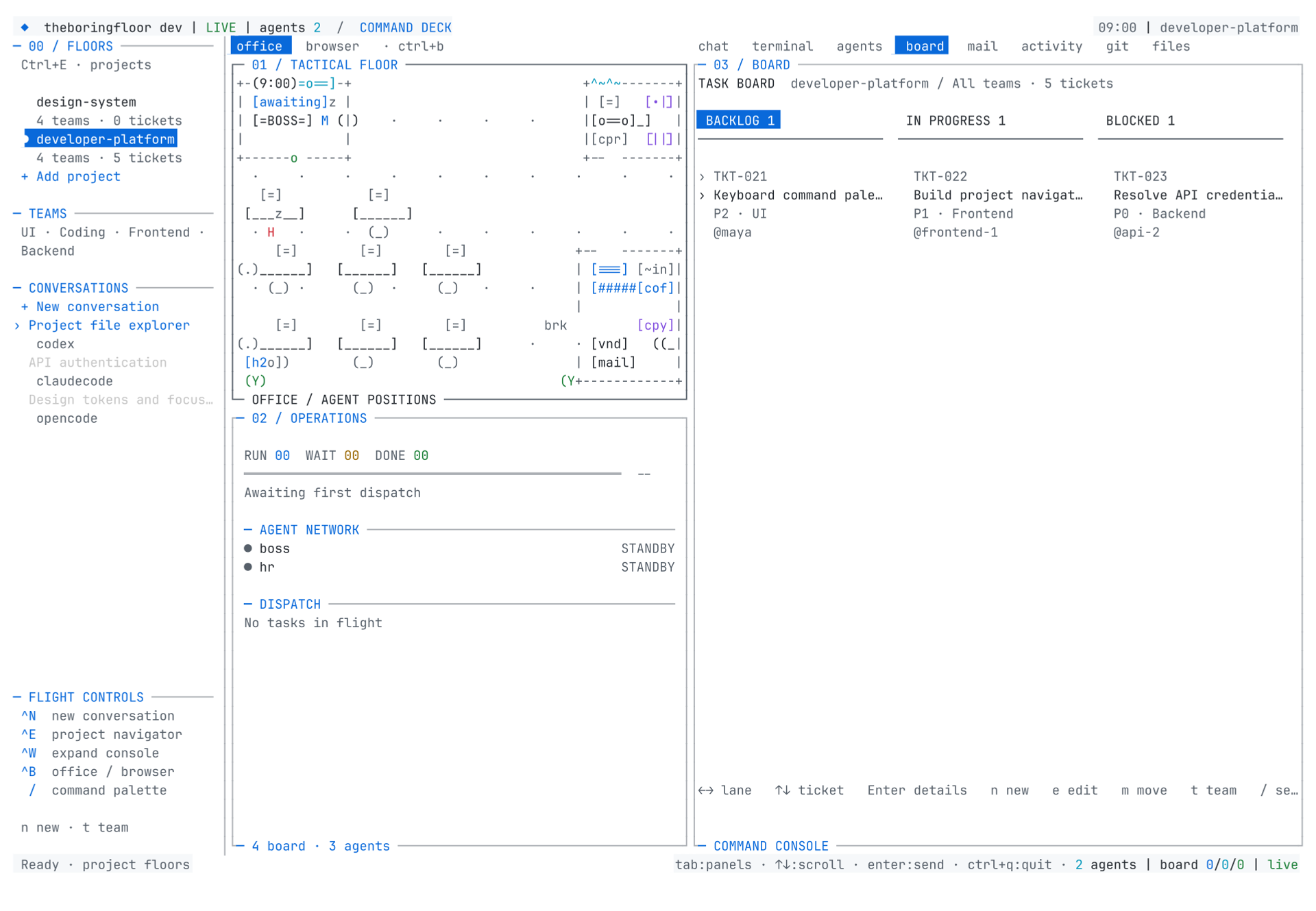
The Board stores project tickets locally. Create a ticket, assign a team and owner, set priority P0–P3, and track it through Backlog → In progress → Blocked → Review → Done. Each ticket supports a description and checklist.
Use the board controls to create and edit tickets, move them between statuses, and inspect details. Live agent task rows remain visible as read-only activity. Manual tickets and teams live in floor.json, independently of whichever conversation is active.
Explore and attach project files
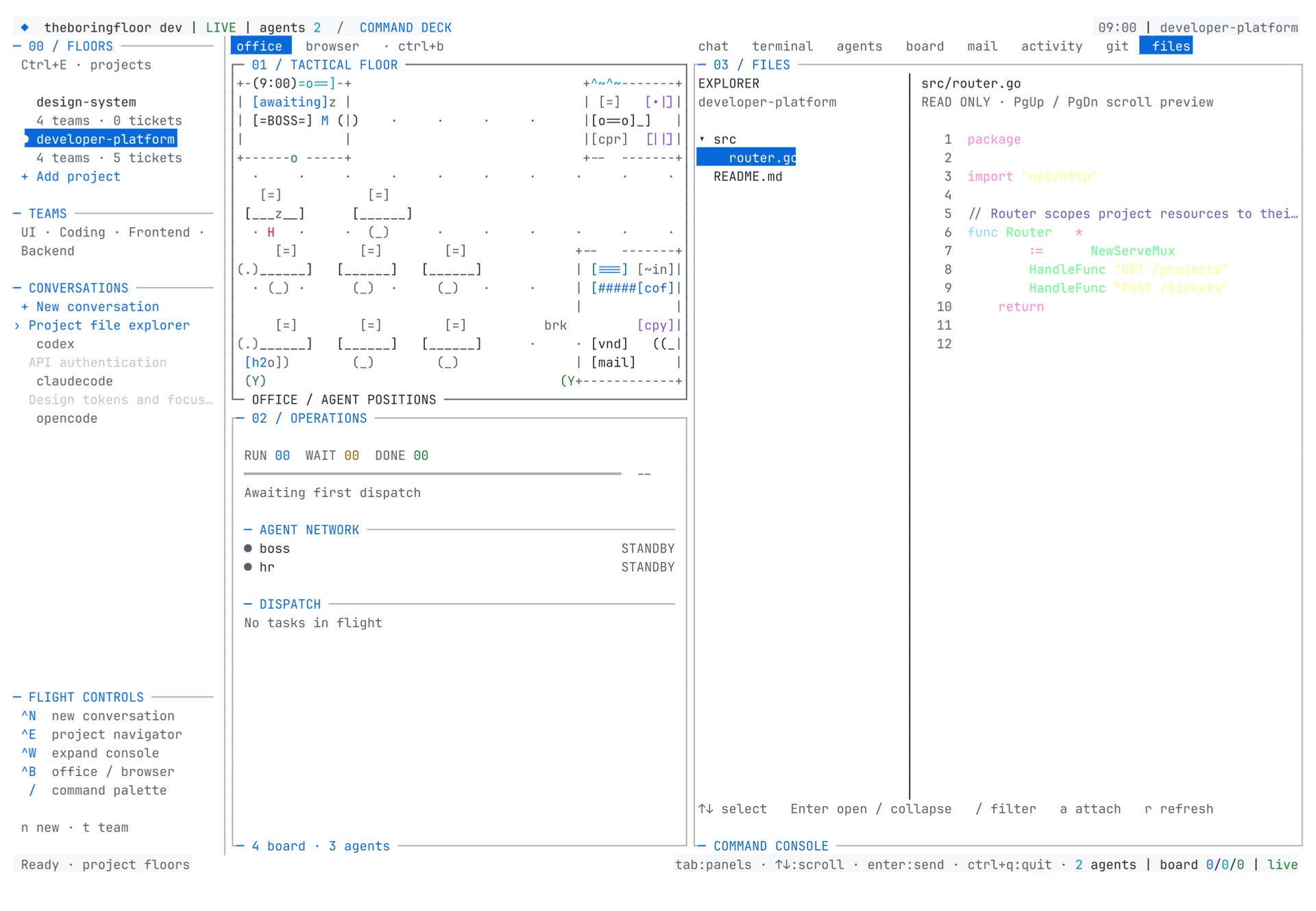
Open Files to browse the project. Expand a folder with Enter, select source to preview it with line numbers, and press a to attach a file to the composer. Folders load on demand.
Previews are limited to 256 KiB to keep navigation responsive. Files and symlinks must resolve inside the project boundary. Attachment limits vary by backend: Codex accepts images and text files up to 1 MiB each; Claude Code receives file paths.
Fast startup, durable history
Ctrl+R searches the loaded transcript without losing your draft. Conversations have separate local archives, indexed by metadata so the floor list does not parse every transcript.
Storage lives under ~/.theboringfloor/projects/<project-hash>/ (or the configured office home), rather than adding session files to the repository:
floor.json: project teams and manual tickets.session.json: a fast startup snapshot of up to 200 recent messages.conversations/<backend-and-session-hash>/session.json: up to 10,000 archived messages per conversation.conversations/<backend-and-session-hash>/meta.json: title, team, backend, and activity metadata.
The outgoing conversation is archived before a new one starts. Writes are serialized and use atomic replacement; unchanged snapshots skip disk writes. Older remote-history paging depends on backend support. MCP transcript tools currently read the 200-message project snapshot, not every archive.
Plan substantial work first
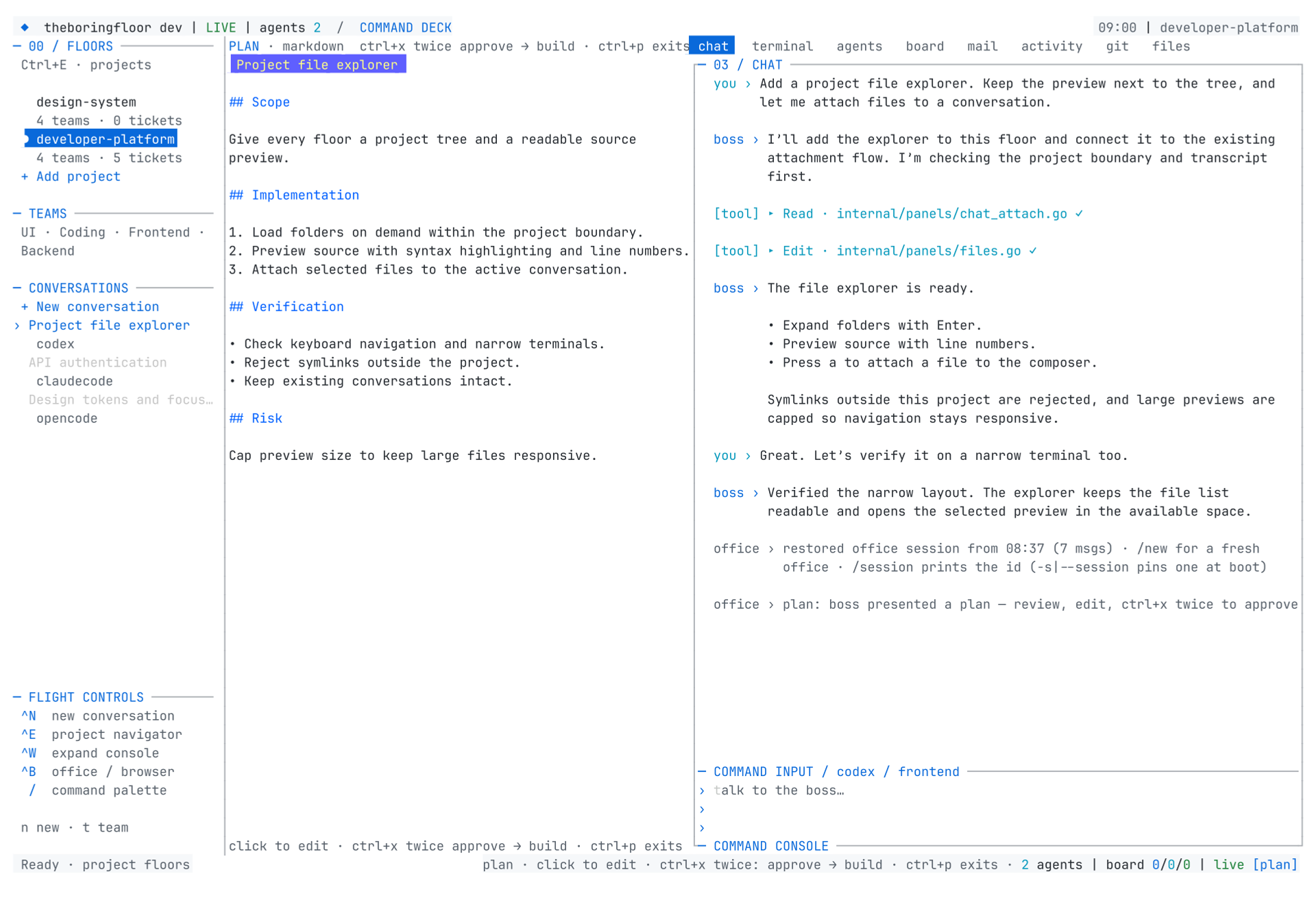
Clearly substantial implementation requests enter planning automatically before they are sent. The boss also assesses scope and must plan major features, migrations, and changes spanning multiple layers before implementation.
plan_present and plan_update open the plan view, including when you were in zen, a worker thread, or expanded tools. Ctrl+X twice approves the draft and sends it for implementation. Ctrl+P switches modes; explicitly returning to build skips automatic planning for the next request. See Plan mode for the exact behavior and backend limits.
A simpler browser setup
The external terminal-browser package is removed from the installer and runtime. Old opt-in variables cannot enable it. The built-in text viewer and headless screenshot support remain; external links open in your system browser. See Browser.